3. The Bot Menu
Opening the menu
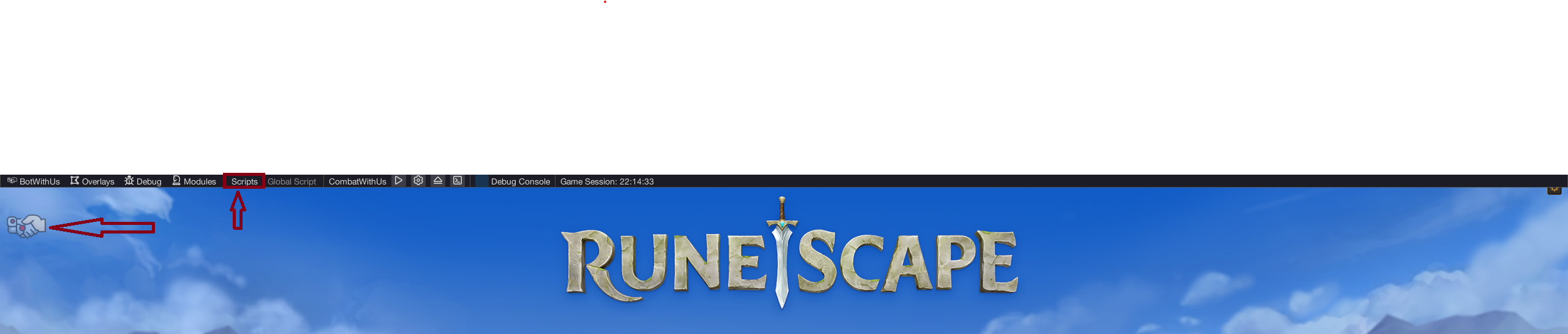
This chapter assumes you've already launched a client and BotWithUs has injected — see chapter 2 if the BWU logo isn't showing in the corner yet.
Open the bot menu in two ways:
- Press Insert on your keyboard, or
- Click the BotWithUs logo in the corner of the client.
The overlay opens on top of the game. From there, click Scripts to bring up the scripts window.
Scripts vs SDN Scripts
Inside the scripts window you'll see two tabs. Switch to the SDN tab to see anything you've subscribed to from the marketplace.
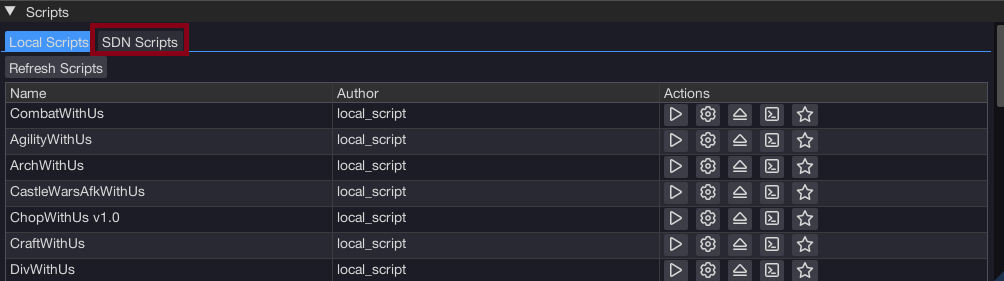
| Tab | Where the scripts come from | When you'd use it |
|---|---|---|
| Scripts | .jar files you put in your local scripts folder | Scripts you wrote, or custom ones a friend sent you |
| SDN | The BotWithUs marketplace, downloaded on request | Anything you've subscribed to on botwithus.net/sdn |
You'll meet "Scripts" again in chapter 5 when you build your own.
"I subscribed but no scripts are showing up"
Two things to check:
- Did you actually subscribe on the website? Browse botwithus.net/sdn, click a script, and confirm it.
- Hit Refresh in the SDN tab. No need to restart the loader — just click Refresh in the SDN tab and your new subscriptions will load.
After that, the script should appear under the SDN tab in the scripts window. Press the load button to start the download (usually instant or only a few seconds).
Running a script
Same flow for both tabs:
- Click the script's name in the list.
- Its options window appears (every script has its own — read what it asks for).
- Click Play to start the script. Some scripts have their own play button inside the script's configuration UI — use whichever the script provides.
- Watch your character act on screen, and watch the script console for any issues.
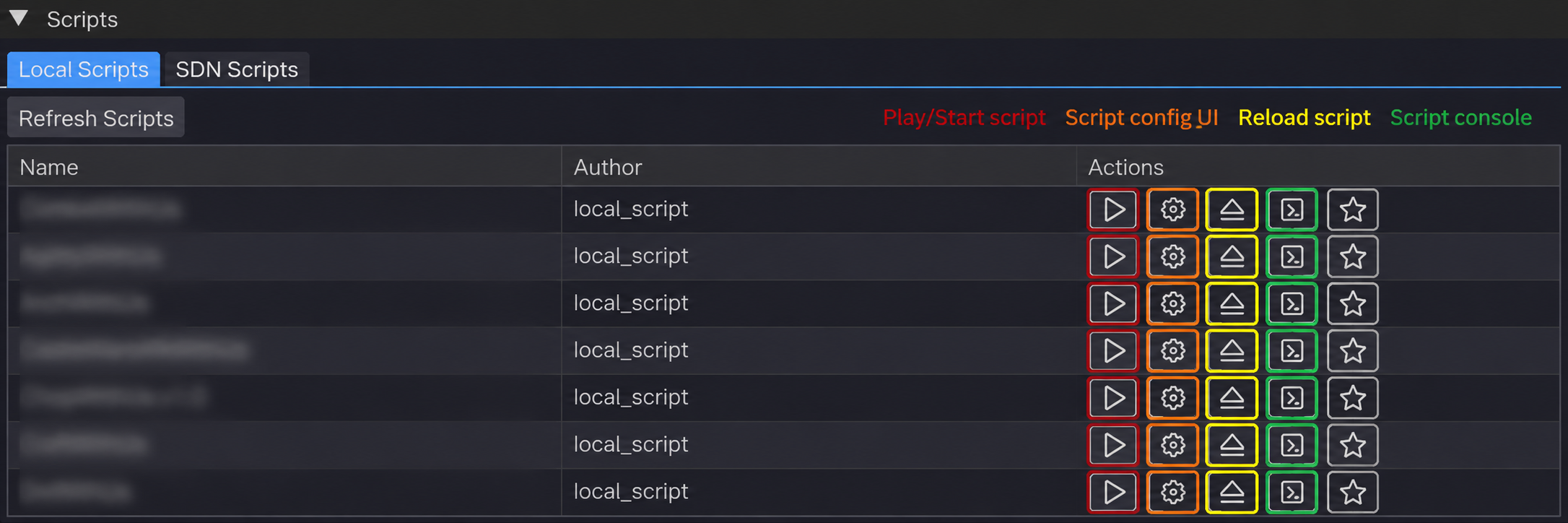
To stop a script, click Stop in its window (it replaces the Play button). Closing the script's configuration window with the configuration icon does not stop the script — only Stop does. The main overlay can be hidden the same way: press Insert or click the BWU logo.
Next: if you only want to use scripts, you're done. To start writing your own, head to setting up your coding environment →.